What is FindTheAsk
Email is full of implicit to-dos — "can you send me the Q3 numbers by Friday?", "are we still on for Tuesday?", "just needs your sign-off". FindTheAsk connects to your Gmail or Outlook inbox (read-only), uses AI to pull out those asks, and turns each one into a task with a suggested title, deadline, and priority. You review them in a Triage queue, then work them on a board. Nothing is sent or changed in your mailbox — the default connection is strictly read-only.
Getting started
- Sign in. Use Continue with Google or Continue with Microsoft on the web, or Google / Sign in with Apple on the mobile app. Signing in only identifies you — it does not grant access to your mail yet.
- Connect a Gmail or Outlook inbox. Right after signing in you'll be prompted to connect an inbox. Google (Gmail) or Microsoft (Outlook) asks you to grant read-only access. Keep that permission checked — it's how FindTheAsk finds your asks.
- Wait for the first scan. We scan your recent mail and your board fills in — usually within a couple of minutes. New asks land in Triage.
You can connect more than one inbox (personal and work) on paid plans — each inbox gets its own board. Manage inboxes anytime under Settings → Connected inboxes (web) or More → Accounts (mobile).
Triage
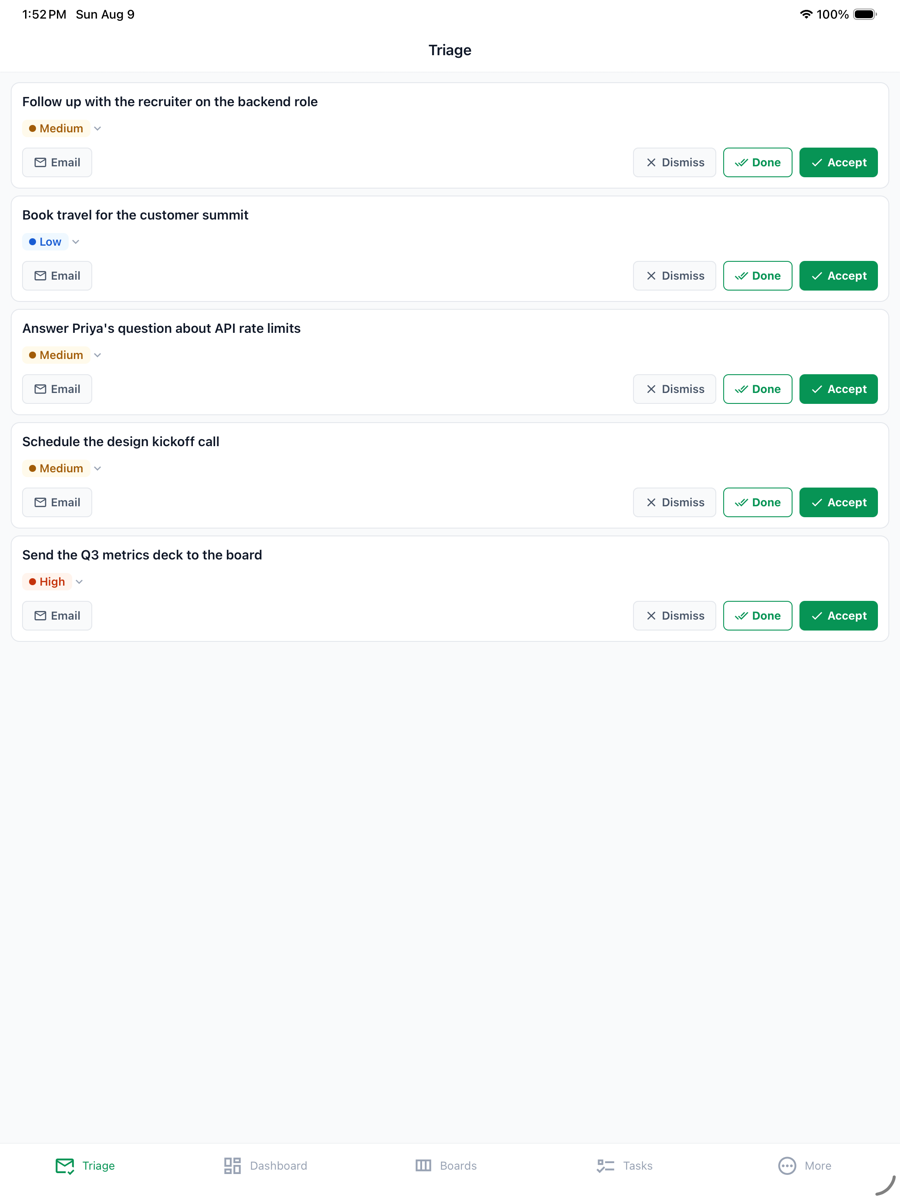
Triage is the review queue for everything the AI extracted. Each card shows the proposed task, its priority, the source inbox, and the date the original email arrived. Open the source email to see the evidence the AI grounded on. For every candidate you can:
- Accept — create the task and place it on your board. By default the original email stays attached to the task so anyone you assign can read it; open Options on the card and untick Keep email to delete FindTheAsk's copy instead.
- Done — the task is already finished; log it as completed (it counts toward your stats) without cluttering the board.
- Dismiss — it isn't a task; remove it from the queue.
- Undo: dismissed something by mistake? Choose Undo on the confirmation that appears and the suggestion returns to the queue. If the dismiss also archived the email, the archive is reversed too.
- Dismiss & archive — (write-enabled inboxes) dismiss it and archive the email thread in one tap.
On the web, cards are kept short so more of the queue fits on screen. Select the email line on a card to open the full description, the quoted ask, and the original email. The Options menu at the end of the card's buttons shows whether the task will be visible on your board or private, and whether its email is kept.
Keeping or deleting the email only affects FindTheAsk's stored copy. It never changes your Gmail or Outlook mailbox; that is what Dismiss & archive is for. The Keep email toggle is preset from Settings → Source emails, and it only appears while that feature is available on your account.
On mobile you can swipe a candidate to Accept or Dismiss. When Triage is empty, you're caught up.
On the web, the top of the queue tells you how many suggestions are waiting and how old the oldest one is, and the Triage tab carries the same count wherever you are in the app. Long queues load 50 cards at a time: choose Show more to keep going. The Tasks tab shows a red count when tasks are overdue. The same line shows when your inbox was last synced, with a Sync menu to pull in the last 24 hours, 7 days, or 10 days again.
Triage lists suggestions most important first: asks that need your action, were sent to you directly, are due soon, or that you forwarded yourself rise to the top. When the queue is long, the first seven appear under Start here with a short reason on each card, and the rest follow under Everything else. Nothing is hidden, and you can switch to Newest first at any time. If a lot has built up, a short note at the top suggests starting with those seven.
When three or more suggestions come from the same sender, they are gathered into one group with a Dismiss all button, so a run of newsletters or notifications clears in one step. Undo on the confirmation brings the whole group back.
A group also has Mute sender. Muting stops that sender's email from creating suggestions at all (it does not use your monthly allowance either) and clears the ones waiting now, which you can restore from the cleared list for 30 days. Undo on the confirmation reverses both. Email that arrives while a sender is muted is skipped for good, so unmuting only affects new mail; forward a skipped email in if you want it as a task. Emails you forward yourself are never muted.
When a newer email in a thread produces a suggestion, earlier suggestions from the same thread that are still waiting are set aside, so you review the latest ask and not three versions of it. They appear in the cleared list, can be restored for 30 days, and a suggestion you restore is not set aside again.
To keep the queue from silting up, low-confidence suggestions that have waited two weeks are cleared automatically. Nothing in your mailbox changes, and suggestions from emails you forwarded yourself are never cleared this way. A note at the bottom of Triage lists what was cleared, and you can Restore any of them for 30 days. Dismissed suggestions are deleted for good after 30 days.
If the queue has grown well past what you want to read, the note at the top offers Start fresh. It shows how many suggestions have waited more than a week, then clears those and keeps the recent ones. Your mailbox is not changed, suggestions from emails you forwarded are kept, and you can undo it or restore individual suggestions from the cleared list for 30 days.
On a wide screen, Triage and Tasks show an at-a-glance panel beside the list: what is due today and overdue (select a number to open those tasks), your weekly goal and streak, how the queue is doing, and how many asks FindTheAsk has caught from your email. The numbers update as soon as you accept, complete, or dismiss something. On a medium-width window, where the panel does not fit, Triage shows the main numbers (due today, overdue, waiting for review, and progress on this week's goal) as a row of tiles above the queue.
While Triage is well behind, the weekly goal ring in the panel is replaced by today's slice: a small number of suggestions to decide on (seven, or five on your first visit after a week away). Finish it and you are done for the day. Once the queue is back under control, the weekly goal returns with a Back in control note for the rest of that day.
Boards
A board is a kanban view of your tasks. You get one board per connected inbox, and a merged "View All" board that shows every inbox at once. Drag a card between columns to move it through your workflow; the last column is "done".
Every task carries a priority on a five-level scale, color-coded from calm to urgent so the board tells you at a glance what needs attention. Tap a card's priority chip to change it.
Landed a task on the wrong board? Open the task (tap its card, or the ✎ edit control in the Tasks list) and use Move to board to send it to a different board — it lands in that board's first ("To-Do") column, and any other boards the task is on are left untouched. A confirmation appears with Undo if you change your mind. The ▣ board menu on a card does the same from the board view: tap Move here next to another board to move it there, or use the ✓ toggles to add or remove individual boards when you want a task on several boards at once.
Tasks
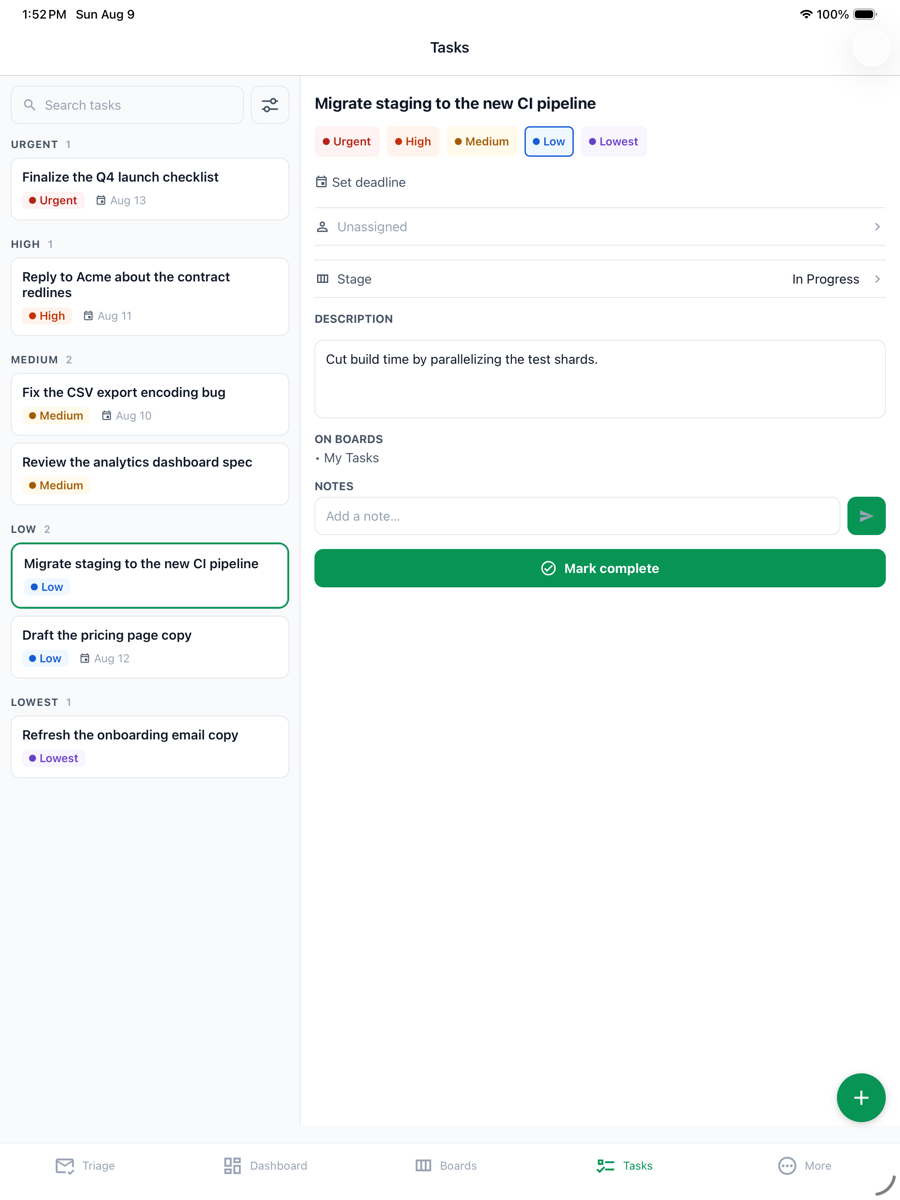
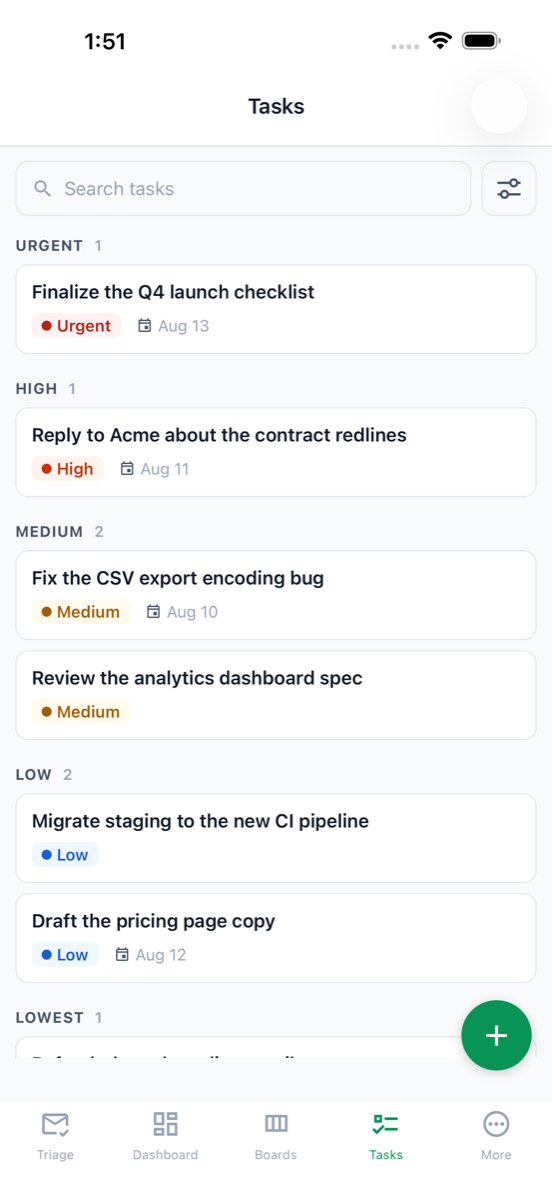
The Tasks tab is a filterable list of everything on your boards — search by text, filter by priority or due date, and jump to any task's details. A task has a title, description, optional deadline, notes, a link back to its source email and, when you kept it, the original email itself under Original email in the task's details. The task owner can remove that copy at any time with Delete stored email; the task then shows "Original email was deleted."
Above the list, a row of tiles counts what needs attention: overdue, due today, stuck in one stage for a week or more, waiting on others, and untouched for two weeks or more. Select Overdue or Due today to filter the list to those tasks. On a wide screen, the panel beside the list also charts your open tasks by priority; select a bar to filter by that priority.
Snooze hides a task from the active list until tomorrow, three days from now, or next week. Snoozed tasks do not count as overdue or stuck while they are hidden, they come back on their own, and Snoozed above the list shows them (with Wake to bring one back early). Completing a task clears its snooze.
When several tasks are overdue or have not moved in a while, Catch up in a few minutes walks you through up to ten of them, one at a time: mark it done, snooze it, or keep it as it is. You can stop at any point.
- Mark complete from the task detail, or
- on mobile, swipe a task right to complete it instantly.
Completing a task feeds your streak and productivity stats on the Dashboard.
Completed the wrong one? A brief confirmation names the task you just completed with an Undo — one tap puts it back on its board. The confirmation stays for 3 seconds by default; change that under Settings → Board display → “Undo window after completing a task” (1–15 seconds). After it's gone, you can still find any completed task under Tasks → Completed.
Dashboard
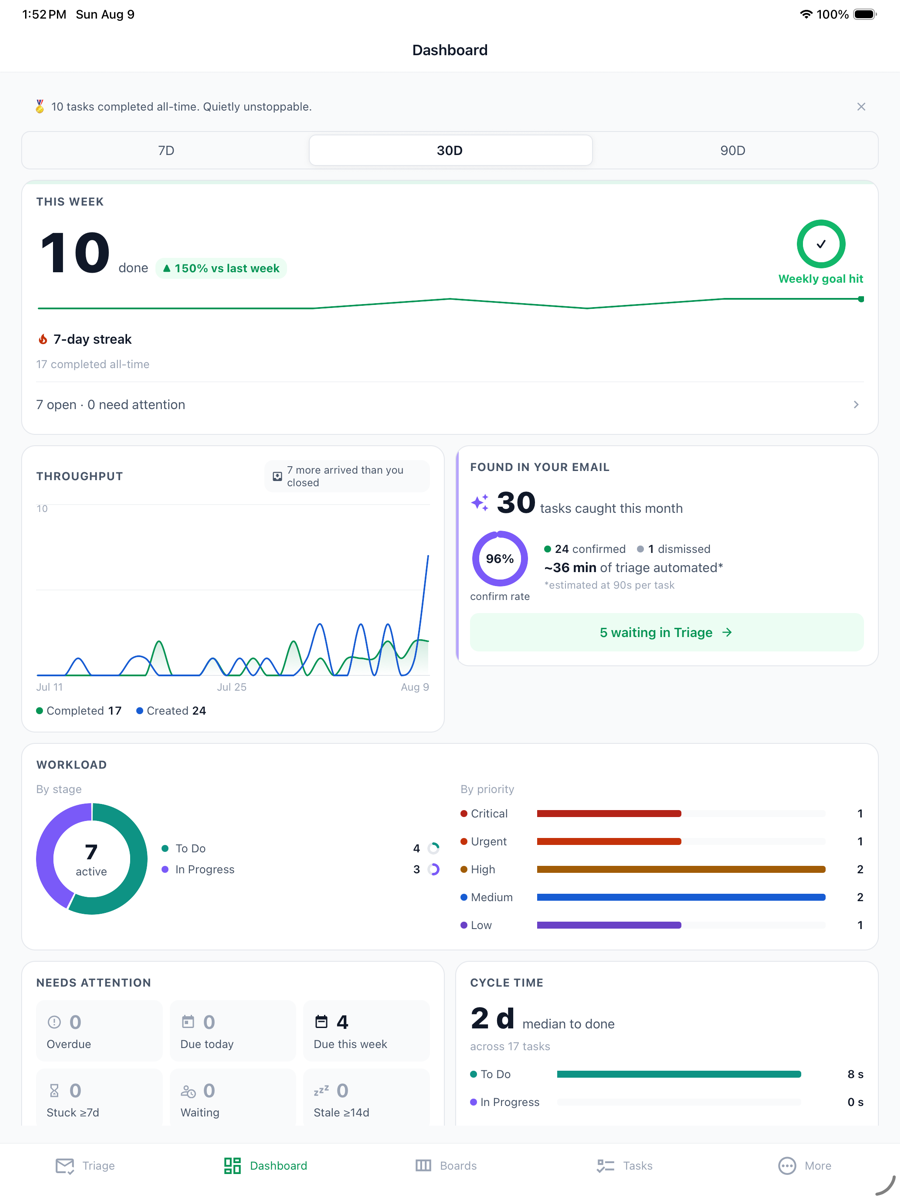
The Dashboard turns your progress into something motivating without being childish. It shows tasks completed this week against an adaptive weekly goal, your streak of consecutive days with a completion, throughput (created vs. completed), and milestone badges (10 / 50 / 100 completed). A short encouragement line greets you based on where you are.
Streaks are built to survive real life. By default only weekdays count, so a quiet weekend never breaks one (working on a weekend still adds to it). Every seven active days banks a day off, up to two, and a missed day uses one automatically instead of ending your streak. Going away? Pause your streak for up to 30 days. If a streak does end, the Dashboard shows the streak you reached, not a count of days missed.
The weekly goal follows your recent pace: it starts at three tasks, rises by at most two a week, and drops freely after a slow stretch. You can set your own number instead. Both the goal and the streak rules are under Settings → Goals and streak.
Below the goal and streak, Weeks in control shows the last twelve weeks as a row of marks. A week earns its mark when you finished at least as many tasks as arrived, ended the week with nothing overdue, or met your weekly goal. Any one of the three is enough. A week that fell short is left empty, a week with no activity shows a dot, and the dashed mark is the current week so far.
The mobile app
FindTheAsk has native iOS and Android apps (phones and tablets), available on the App Store and Google Play. Highlights:
- Offline-first — browse and act on tasks without a connection; changes sync when you're back online.
- Push notifications — a coalesced "N new asks in Triage" nudge per inbox sync.
- Accept or Dismiss from the notification: when a single new ask arrives, the notification carries Accept and Dismiss buttons, so you can clear it without opening the app. Your choice is queued offline and syncs when you reconnect. A notification covering several new asks opens Triage instead, so you always see what you are deciding on.
- Native Gmail connect — connect an inbox right in the app (any login method), no web bounce.
- Swipe to complete on the Tasks tab, and swipe Accept/Dismiss in Triage. Accepting a candidate, by tap or swipe, follows the card's Keep email toggle, which is preset from your Settings default.
- Instant updates — small improvements arrive over-the-air; you'll see an "Update ready — tap to restart" prompt.
Inbox write access (optional)
By default FindTheAsk is read-only and can never send, delete, or change your mail. If you want it to help tidy your inbox, you can opt a specific inbox into write access — a separate, deliberate step per inbox. With writes enabled you can:
- Dismiss & archive a Triage candidate (archives the email thread), and
- Label accepted tasks so processed mail is easy to find — a “FindTheAsk” label in Gmail, or a “FindTheAsk” category in Outlook.
Enable it under Settings → Connected inboxes → Enable archive & label (web) or More → Accounts → Enable archive & label (mobile). Declining leaves the inbox read-only and fully working.
Note that deleting a stored email inside FindTheAsk is a different thing: it removes only FindTheAsk's copy and never touches your mailbox.
Forwarding address
Every account gets a unique forwarding email address. Forward any email to it and FindTheAsk turns that message into a Triage candidate — handy for pulling in an ask from an inbox you haven't connected, or flagging something specific. Find your address under Settings → Task forwarding; you can download it as a contact (.vcf) so it's one tap away in your mail app.
Teams & sharing
On the Team plan you can share boards and execute together with seat-based billing and manager visibility. Use the Invite a colleague button to:
- Refer a friend — send someone an invite to try FindTheAsk (see Referrals), or
- Add a colleague — give a teammate a seat on your workspace. If you're on Free you'll be prompted to upgrade; on Pro you move to Team; on Team a seat is added and prorated.
Invited colleagues join automatically the next time they sign in with the invited address.
When a task keeps its source email, the task owner and the members of any shared board it is on (including anyone assigned to it) can read that email inside FindTheAsk. Managers who see the task only through reporting-line visibility cannot. Turn off Settings → Source emails → Keep the source email with tasks, or untick Keep email in Triage, for tasks you would rather not share that way.
Referrals
Invite friends, family, or colleagues from the Refer a friend flow. The current incentive is shown live in the app (and in your weekly/monthly emails) with your personal share link — we always show the real, current offer rather than a hardcoded one.
Weekly & monthly digests
FindTheAsk can send a celebratory weekly and monthly recap of what you accomplished — tasks completed, your streak, and throughput — plus a reminder of the current referral offer. These are on by default and easy to turn off: every email has a one-click unsubscribe that turns off digests only (task assignment email keeps arriving), and you can switch each kind of email on or off in Settings → Notifications. We never email a zero-completion digest.
If your Triage queue has been growing and you have not been in for a while, we may send up to three short reminder emails, spaced at least a week apart, pointing at the quickest way to catch up. They mention counts only, never the content of your email. They stop as soon as you accept, dismiss, or complete something, and turning off Tips and reminders in Settings → Notifications (or using the unsubscribe link in any of them) stops them entirely.
The weekly digest arrives Monday morning in your own timezone and covers the week that just closed. Alongside the recap it shows the week ahead: how many tasks are due in the next seven days, how many are already overdue, how many asks are waiting in Triage, and the first few things up next. If nothing has a due date, it lists your highest-priority open tasks instead.
Plans & billing
See Pricing for the full comparison. In short:
- Free — one personal inbox, AI triage for up to 200 emails/month, 30-day history, a simple board.
- Pro ($12/mo) — up to 5 personal + 5 work inboxes, unlimited AI extraction, full history, one board per inbox. Starts with a 15-day free trial, no card required.
- Team ($18/user/mo) — shared boards, seat-based billing, manager visibility.
Manage your subscription, seats, and payment method under Billing. Upgrades take effect immediately; a Team seat added mid-cycle is prorated.
To cancel, choose Cancel plan under Billing. You first see what moving to Free changes for your workspace, in your own numbers, and are asked for the main reason. Continue to cancel then opens our payment provider's page, where you confirm. Your boards and tasks are kept either way.
Monthly usage. Free and trial workspaces have a monthly allowance of emails our AI reads for asks — 200 a month on Free and 1,000 during the Pro trial. Only mail that reaches the AI counts: obvious noise (newsletters, promotions, automated mail) is filtered out first, for free, and never counts against you. Pro and Team have no monthly limit.
You'll never hit the limit unannounced. Once you pass 75% of the allowance, a banner at the top of the app shows the percentage used and the date it resets; past 95% the banner turns red. We also email the workspace's billing contact once at 75%, 90% and 100% — at most three notices a month.
If you do reach 100%, FindTheAsk stops scanning new mail for asks until the allowance resets on the 1st of the next month (UTC). Your boards, tasks and history are untouched, and upgrading to Pro restores processing immediately.
Nothing is lost while you're over the limit. Mail that arrives once you're capped is still received and stored — it just isn't read by the AI. When you upgrade, we automatically go back and process everything that was skipped, so the asks you were over the line for land on your board within a few minutes of subscribing. The catch-up covers the last 30 days of skipped mail; anything older stays unprocessed, since asks mined from months-old email are usually stale.
Introductory discounts. When a discount is running, it applies to your first term — your first month on monthly billing, or your first year on annual — and it's applied automatically at checkout, with no code to type. The Billing tab shows the discounted price against the regular one, and states what you'll pay when the term renews, before you subscribe. Introductory discounts are for your first paid subscription, so they don't apply if you've subscribed before.
We occasionally run limited-time discounts, and may send you a personal, account-specific offer by email. Any offer that's live for your account appears at the top of the Billing tab and is applied automatically — there's never a code to type. Personal offers are single-use, tied to your account, and expire on the date shown.
If you're on a paid Pro plan and receive a personal Team upgrade offer, claiming it upgrades your existing subscription in place: you're charged a prorated amount immediately (minus credit for the unused part of your Pro plan), and the discount then applies to the full Team price for the number of months shown on the offer. The exact numbers are displayed before you confirm. Other offers are applied automatically at checkout.
If a payment does not go through, a notice appears at the top of the app until it is fixed, and paid features are paused in the meantime. Billing admins can select Fix payment to update the payment method.
The web app shows at most two notices at the top at a time, most urgent first. A payment notice always comes first, then inbox connection problems and usage warnings. Anything else waits until you dismiss or resolve one of those.
Privacy & security
- Read-only by default. Connecting an inbox grants read-only access to your Gmail or Outlook mailbox. Write features are a separate, per-inbox opt-in.
- Your mail stays yours. We extract task metadata; email content is only used to find and describe asks, and is never shared with advertisers or included in analytics. FindTheAsk keeps an encrypted copy of an email while its suggestion waits in Triage and, by default, with the task after you accept it. You can turn that default off under Settings → Source emails, decide per task in Triage, or delete any stored email later.
- Tokens are encrypted at rest and never leave our servers.
- There is no FindTheAsk password. Your account has no password of its own, so there is nothing to reset and no password page to phish. Sign-in always goes through Google, Microsoft or Apple, which means whatever protection you have set up there (two-step verification, security keys, your organization's sign-in policy) applies to FindTheAsk too.
- You control analytics cookies. On our marketing pages, EEA/UK visitors are asked to consent before any analytics or advertising cookie is set; anyone can change that choice anytime via Cookie settings in the footer. The signed-in app carries no third-party analytics tag at all.
- Ad measurement is content-free. If you arrived from a Google ad and consent rules allow it, we may tell Google Ads that a trial started or a subscription was purchased after that click, using only the click identifier and a standard plan value: never your email, your mail content, or your payment details. Browsers sending Global Privacy Control are excluded.
- Delete anytime. You can disconnect an inbox (stops syncing, keeps your boards) or permanently delete your account and all associated data — see below.
Full details are in our Privacy Policy.
Managing your account
- Connected inboxes — add, rename, enable writes, or disconnect. Disconnecting stops sync and wipes stored credentials but keeps your boards and tasks. Disconnecting also deletes every stored email copy from that inbox.
- Goals and streak: count streaks on weekdays only or every day, set your own weekly goal or leave it automatic, and pause your streak while you are away.
- Senders: mute a sender or a whole company domain so their email stops creating suggestions, or mark them as priority so their suggestions come first in Triage. Enter an address for one person or a domain such as company.com for everyone there. Public mail providers such as gmail.com cannot be muted as a domain, and you can keep up to 200 rules.
- Notifications: choose which email you receive, with a separate switch for task assignments, weekly and monthly summaries, tips and reminders, and offers. Turning one off never affects the others. Usage and billing notices about your account are always sent. Push notifications are managed in the mobile app.
- Source emails: choose whether accepted tasks keep the original email attached (on by default). This only affects FindTheAsk's stored copy.
- Delete your account & data — a self-service option on the web (Settings) and in the mobile app (More → Delete account), plus a public deletion request page, permanently erases your account, tasks, and stored email data. Cancel any active subscription first.
Getting help
Can't find the answer here? Head to the support page and send us a message — it goes straight to our team and we'll reply by email. You can also write to support@eventfoundry.com directly, or simply reply to any FindTheAsk email and a human will help.